How it works
Two quick guides: booking a court, and checking the status of a booking you already made.
Booking a court
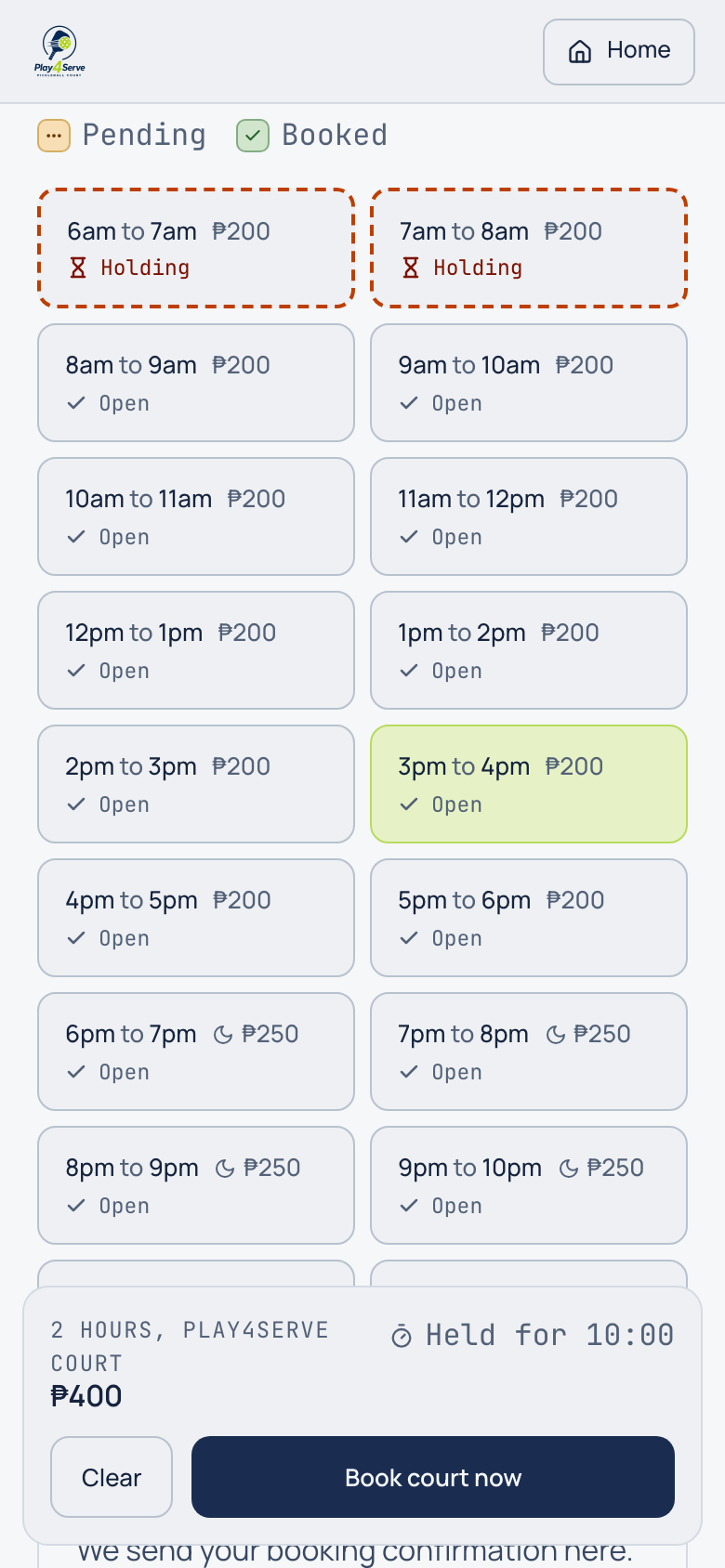
Pick your court, date & time
Choose a court, tap a date on the calendar, then tap the open hours you want. Your slots are held for 10 minutes while you finish.
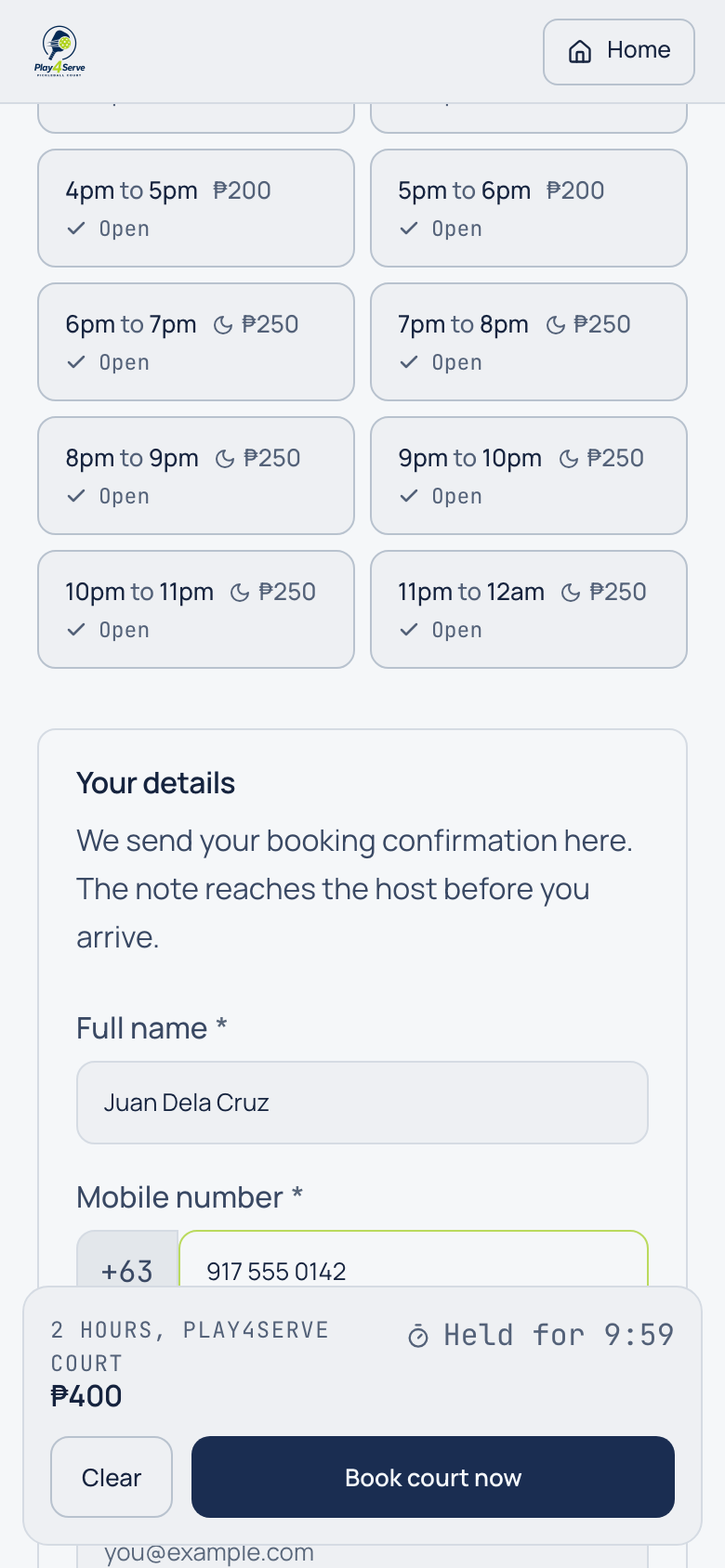
Enter your details
Add your name and mobile number. Use the number you'll pay with. Email is optional.
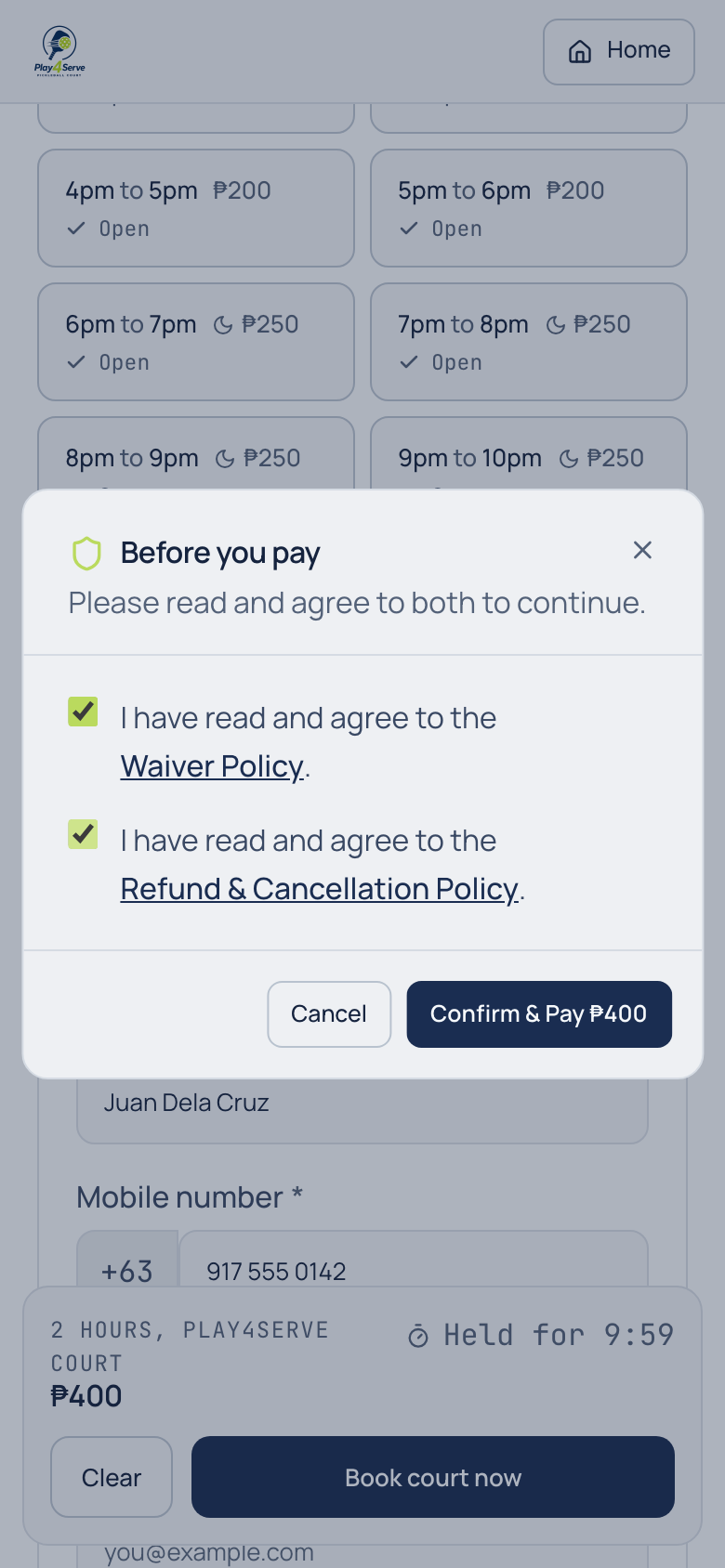
Review & agree to the policies
Tap Book court now, read and tick both policies, then confirm to lock in your booking.
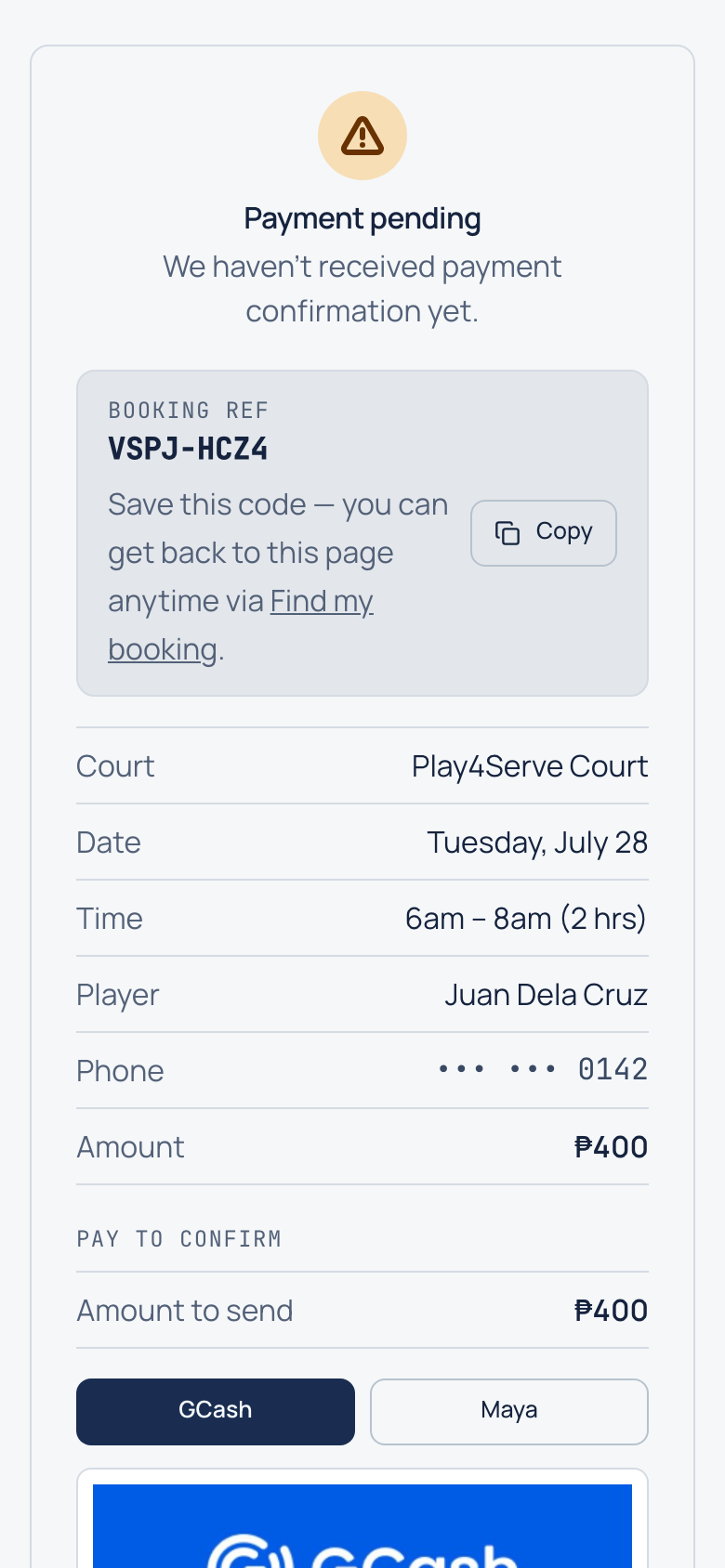
Pay via e-wallet QR
Scan the on-screen QR and send the exact amount. Keep your booking reference handy.
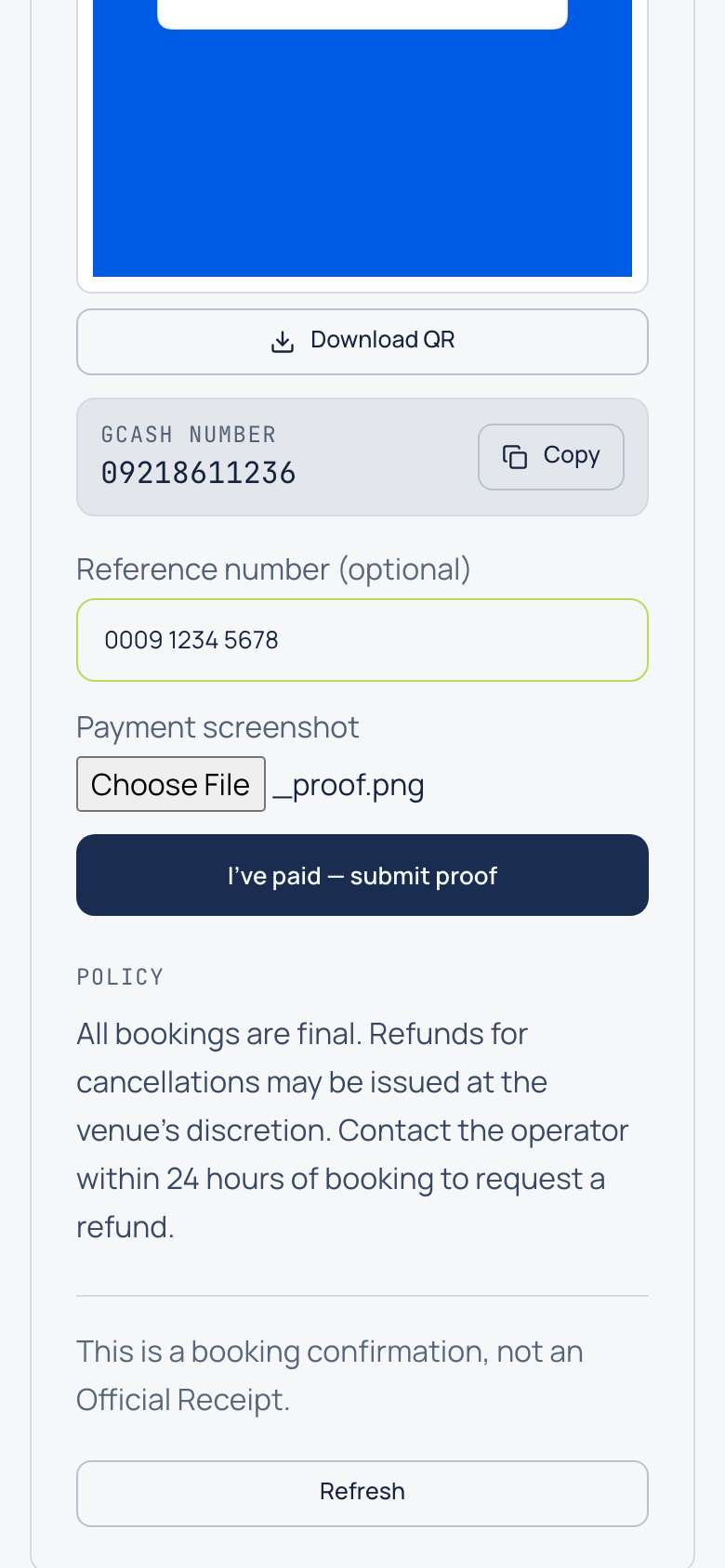
Upload your payment proof
Optionally add the reference number, attach a screenshot of your payment, and submit.
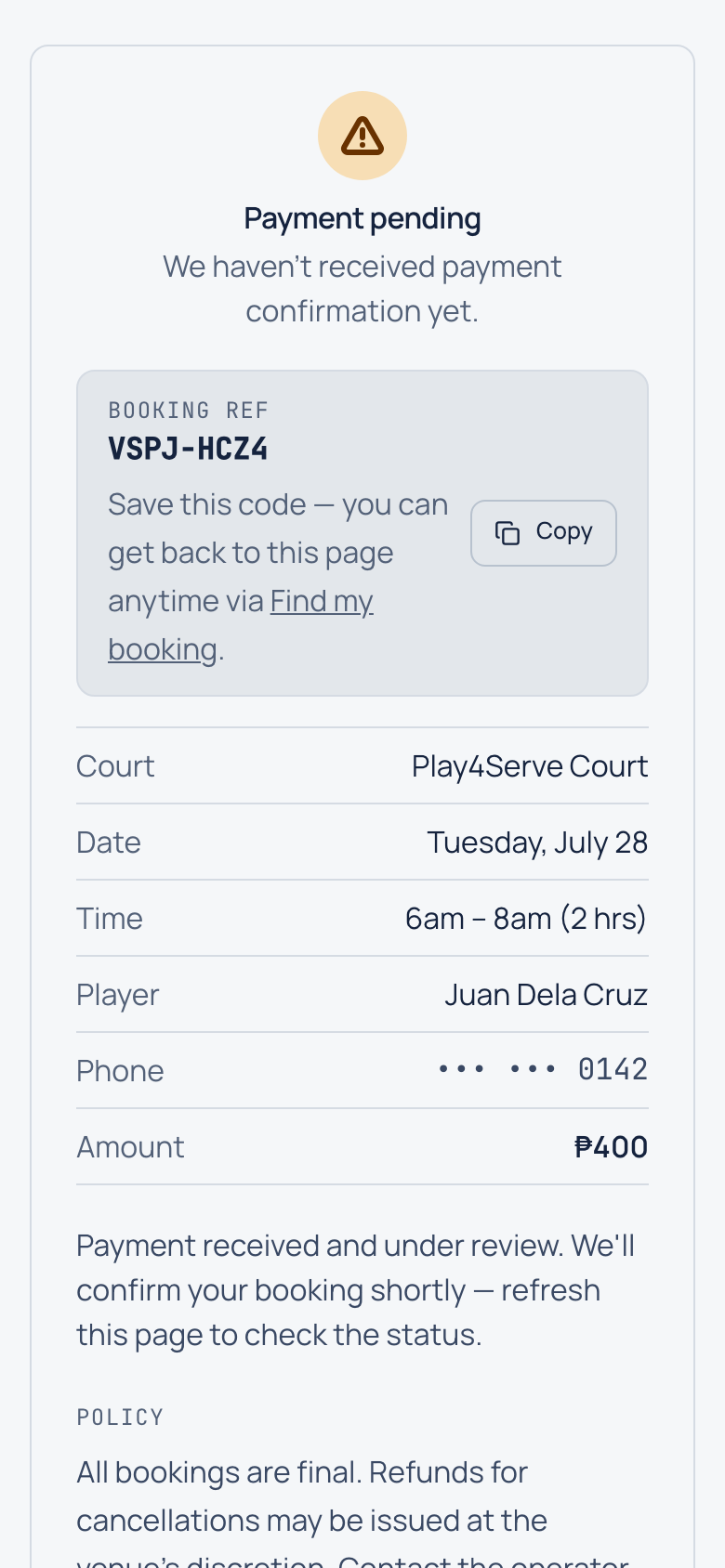
Wait for confirmation
Your payment goes under review. Tap Refresh now and then. The host confirms it shortly.
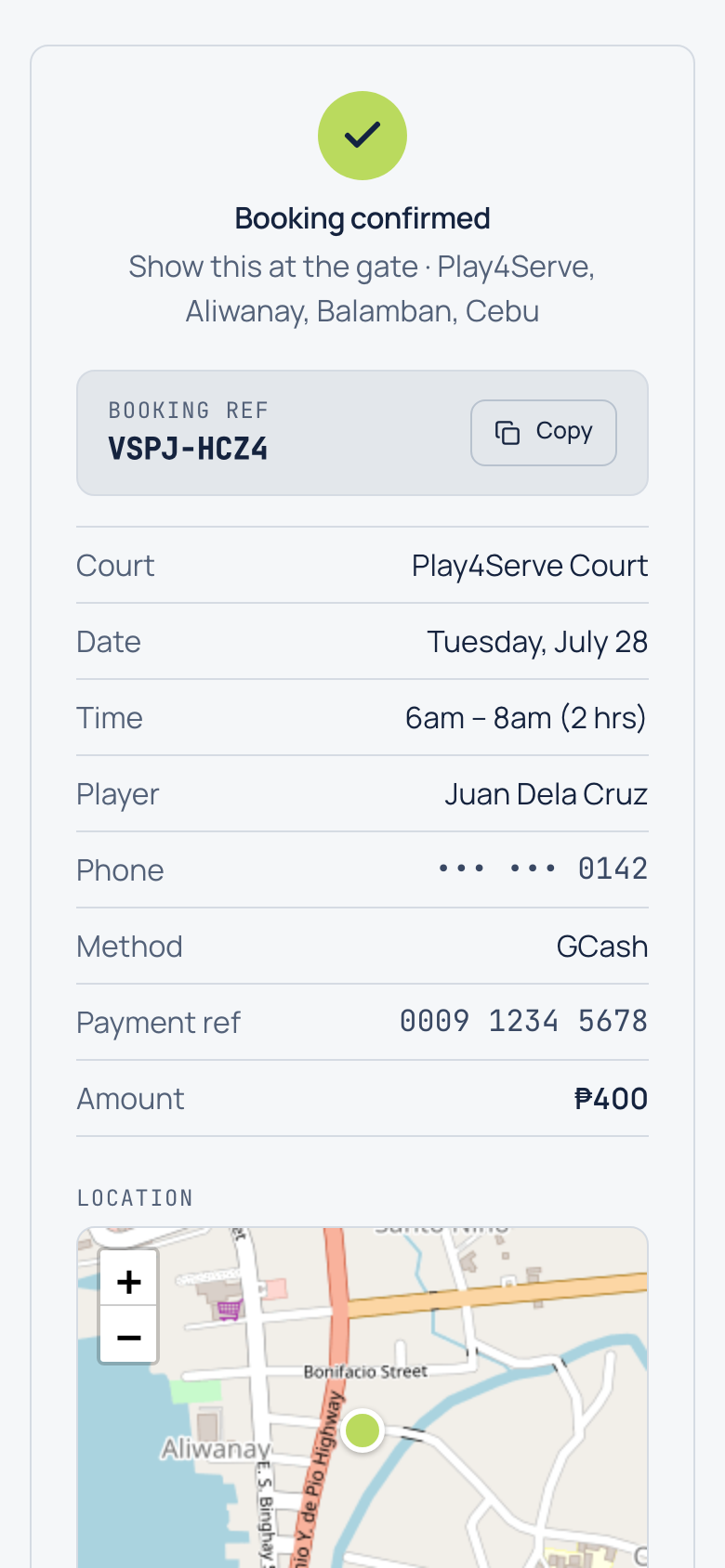
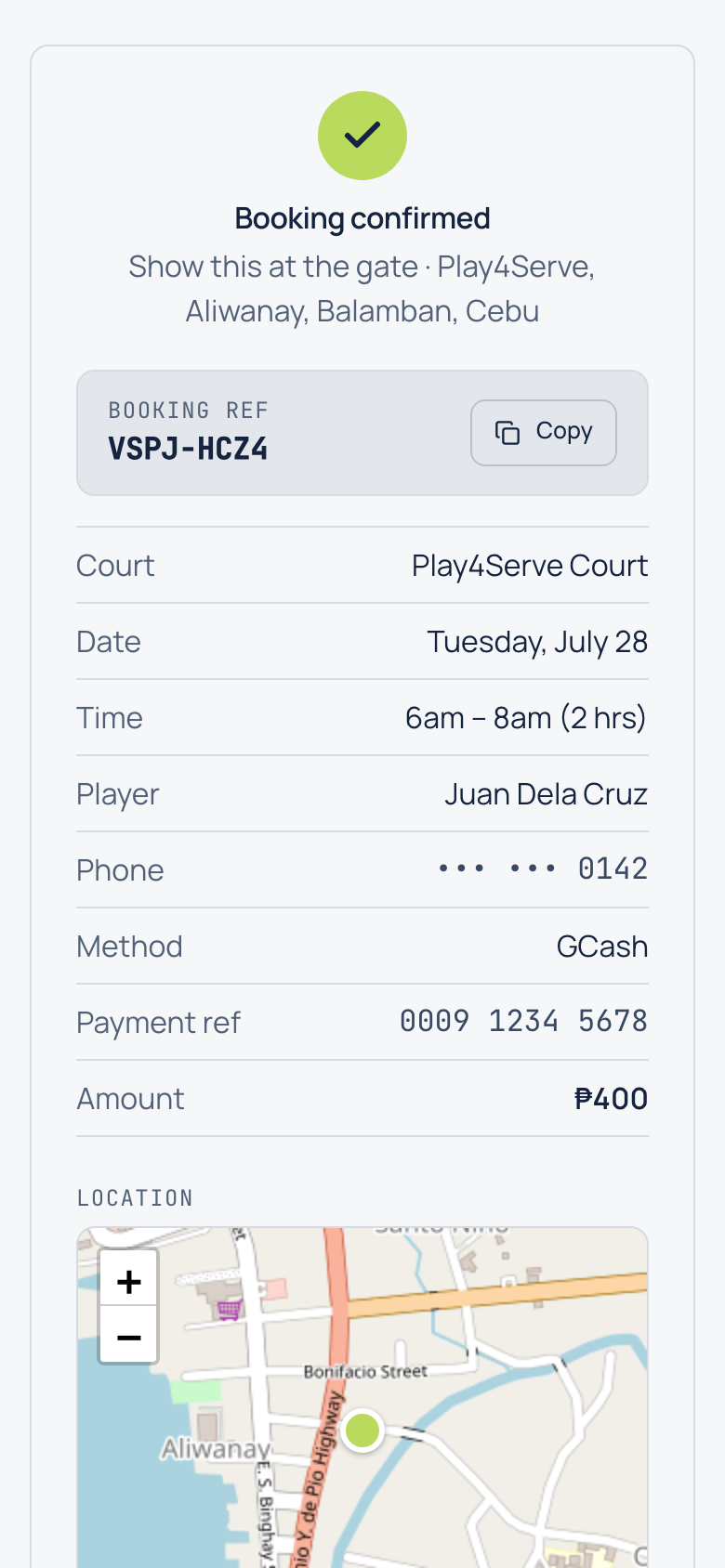
You're confirmed
Once accepted, the page turns green with your booking details. Show this at the gate.
Check your booking status
Open "Find my booking"
From the booking page, tap Find my booking (or go to /find).
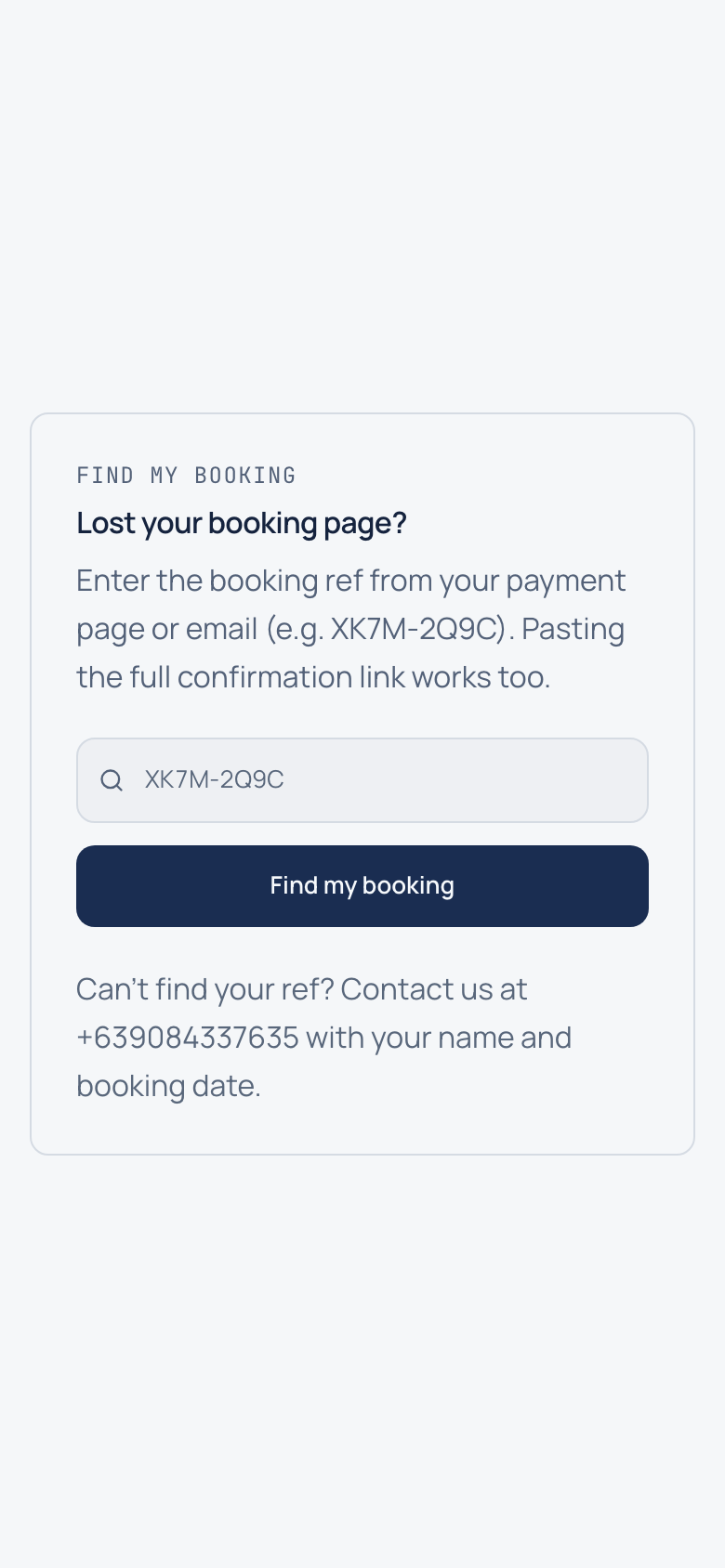
Enter your booking reference
Type the reference from your payment page or email, then tap Find my booking.
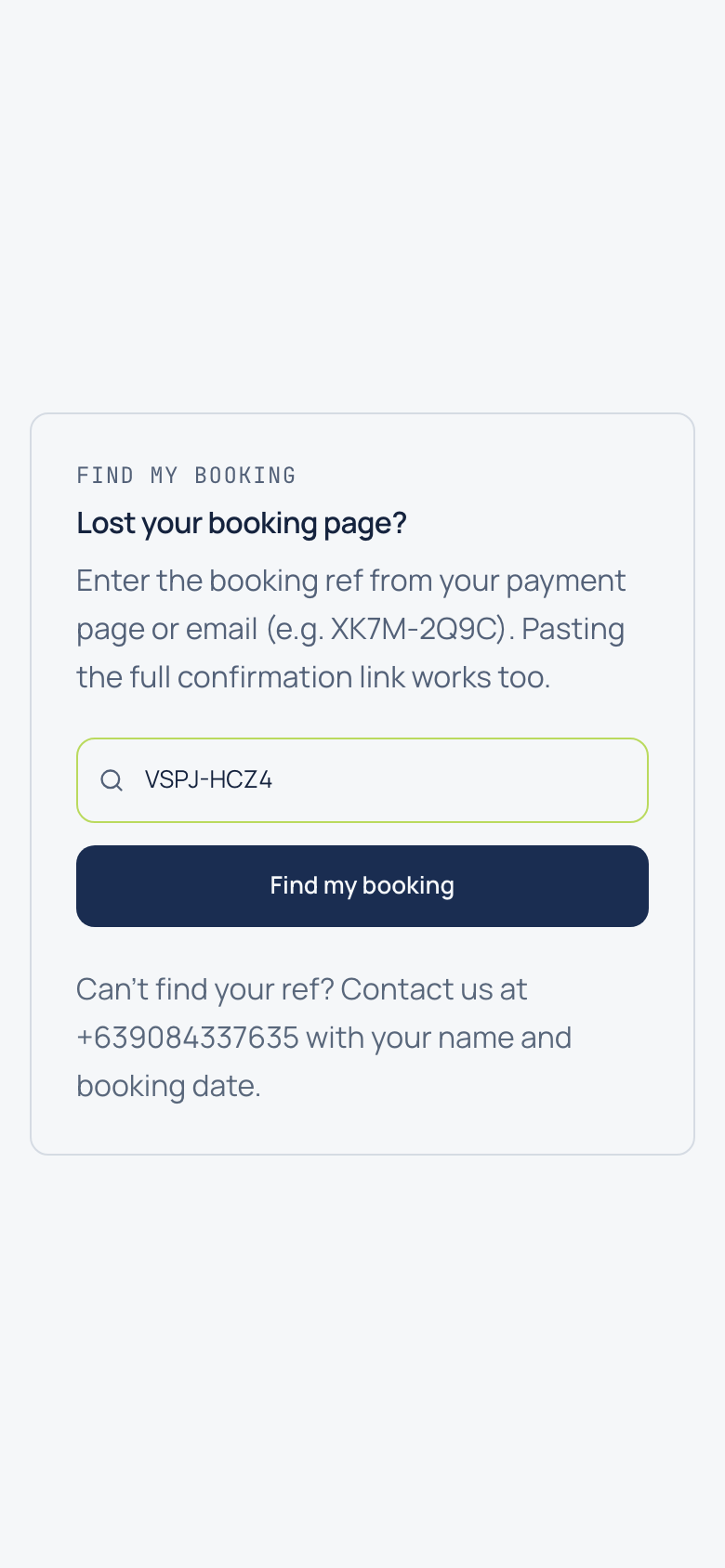
See your booking's status
You'll land on your booking page showing pending, under review, confirmed, or cancelled.